Skip to content
Beefy Generator Marketing

New · Businesses in ChatGPT (beta) · Nov 10, 2026

How to Claim Your Generator Business in ChatGPT

On November 10, 2026, OpenAI launched Businesses in ChatGPT in beta. This is a practical walkthrough for standby generator dealers and installers, built on OpenAI's own setup instructions.

Free · 14-page PDF · Step-by-step with screenshots

AI assistant

Who installs whole-home standby generators near me?

Here are a few local options:

Your Generator Co.

Standby generator installer · Your Town, ST

+1 555-555-0123
Mon–Fri 8:00 AM – 5:00 PM
yourgeneratorco.com

Another Generator Shop

Illustration with placeholder details. Claiming doesn't guarantee ChatGPT will recommend you.

Read this first

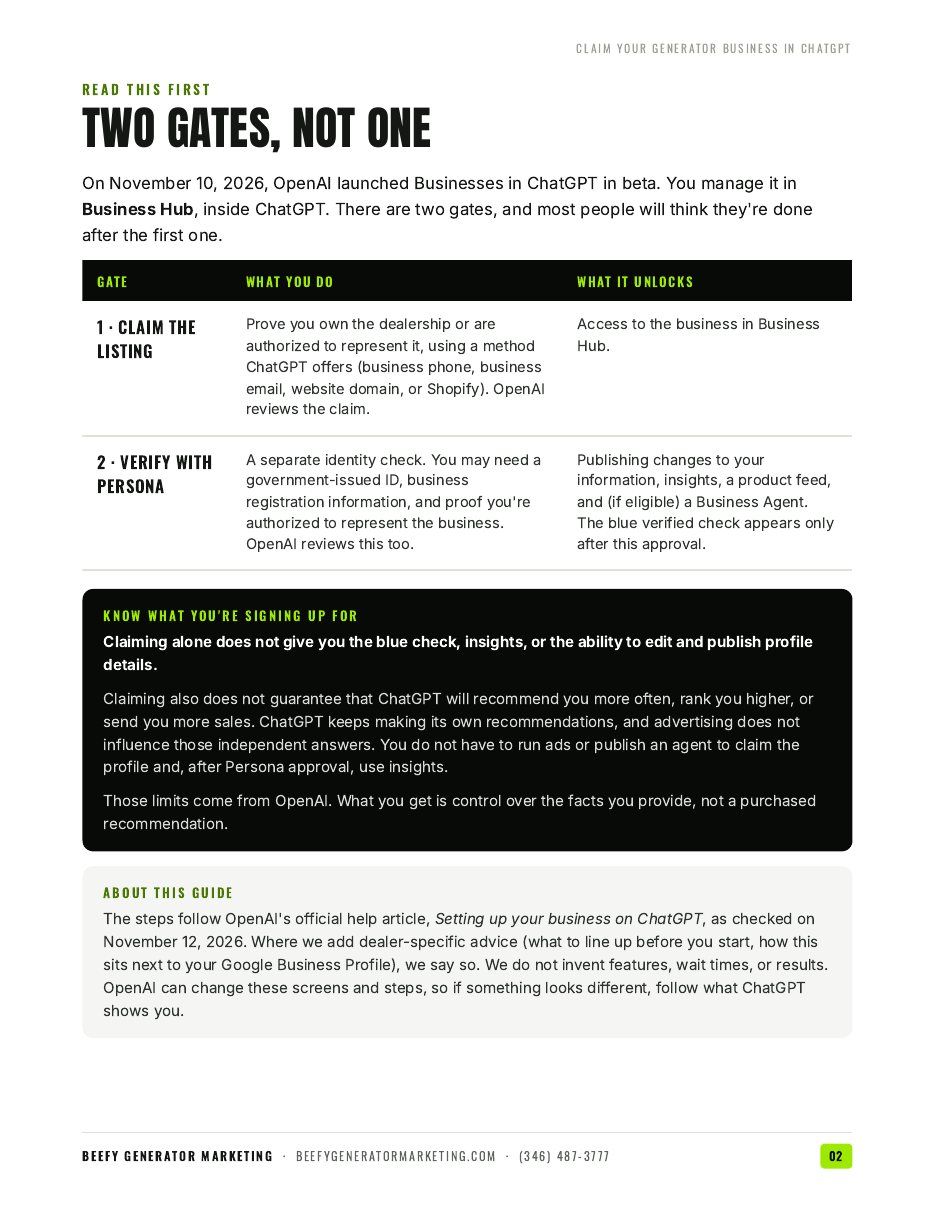
There are two gates. Most people stop after the first.

Gate 1 · Claim the listing

Prove you own or represent the dealership: business phone, business email, website domain, or Shopify. OpenAI reviews the claim.

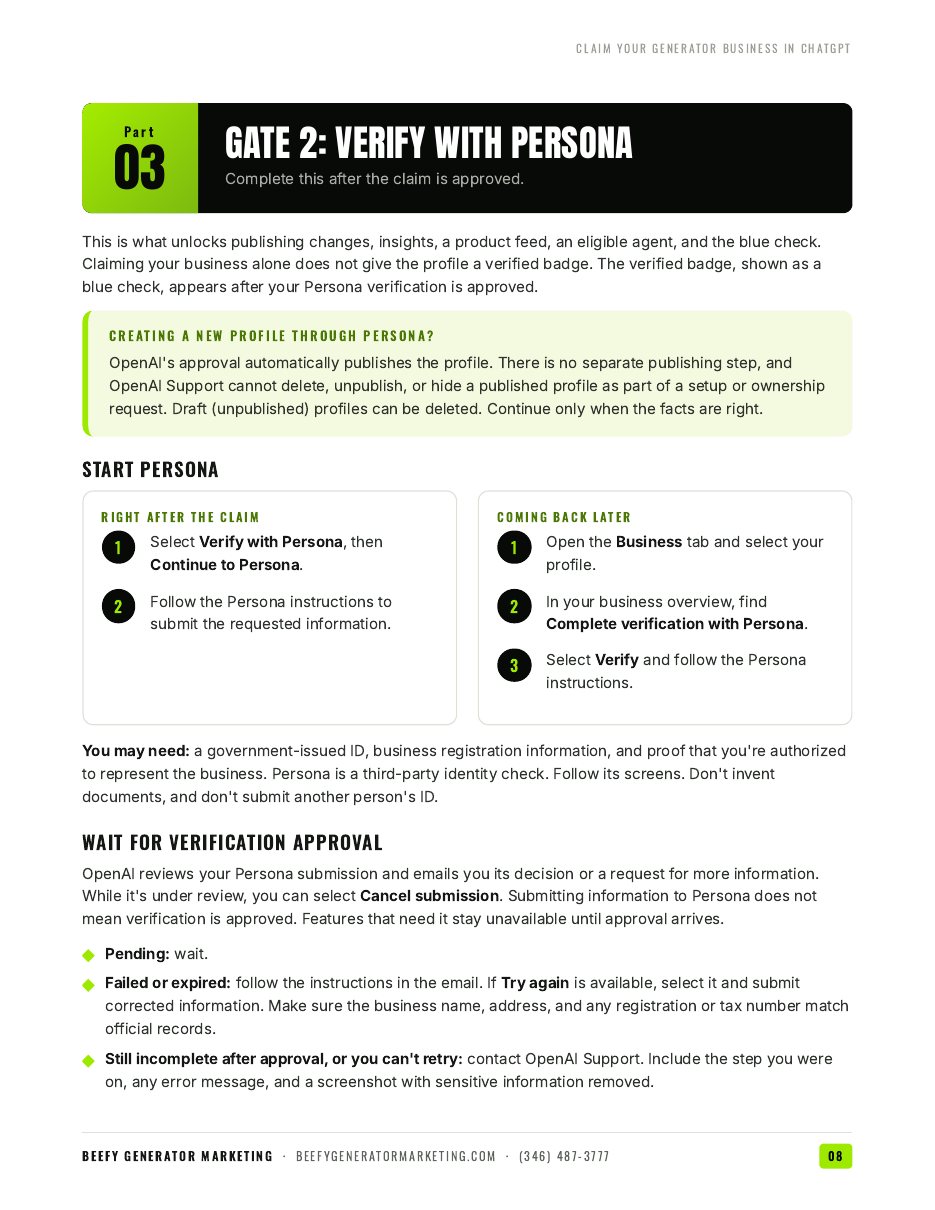
Gate 2 · Verify with Persona

A separate identity check. Have a government-issued ID, business registration information, and proof you're authorized ready. OpenAI reviews this too.

Unlocked

  • Publish changes to your info
  • See insights
  • Connect a product feed
  • Blue verified check
  • Business Agent (only if eligible)

Claiming does not guarantee ChatGPT will recommend you more often or send you more sales. It does let you manage the information you provide.
The claim, step by step

  1. 1

    Line up your facts first

    Name exactly as on GoogleAddress or service areaSame phone numberHoursCategoryBrandsPhotos
  2. 2

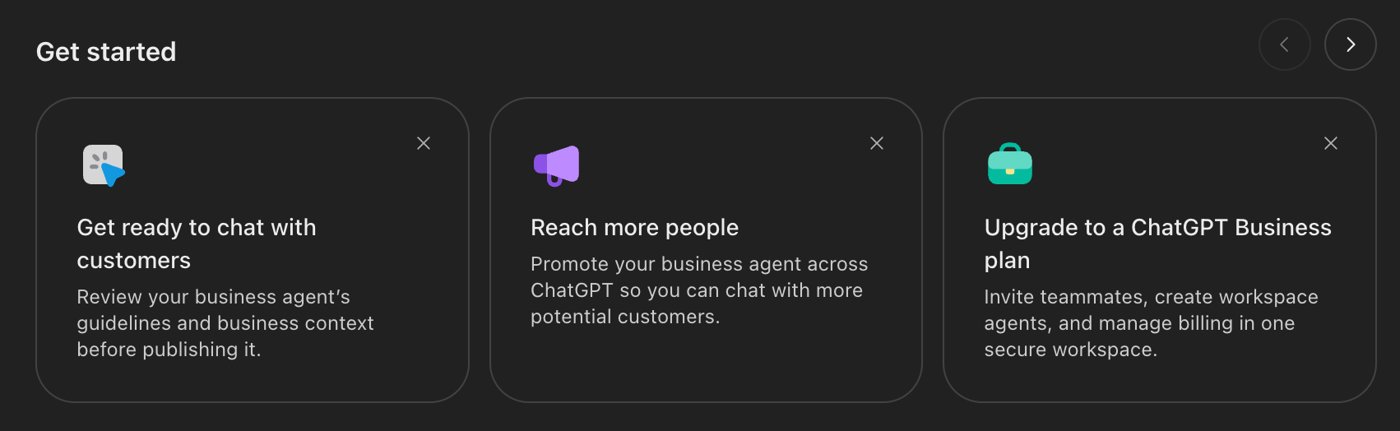
    Open Business Hub and start the claim

    Sample Business Hub get-started screen for claiming a business
  3. 3

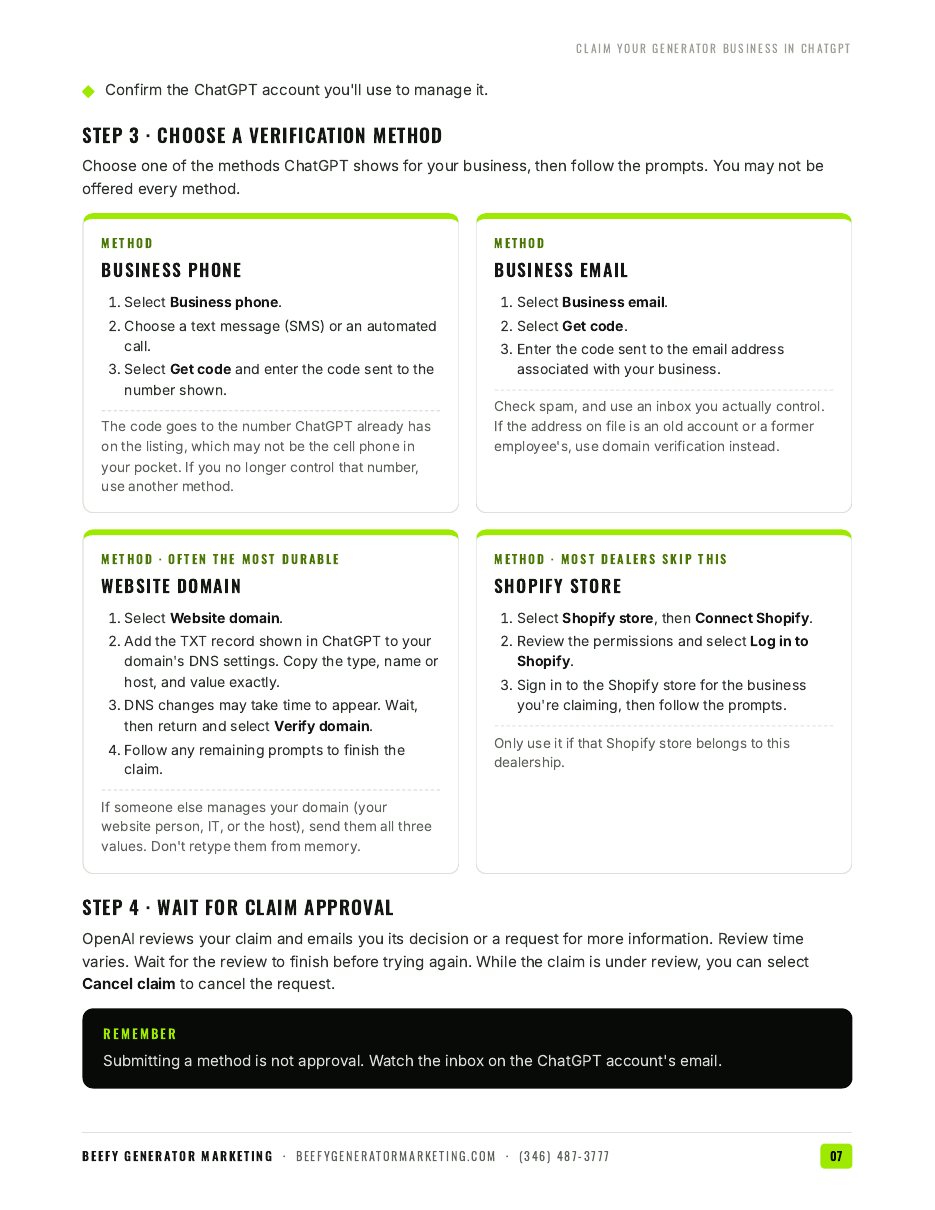
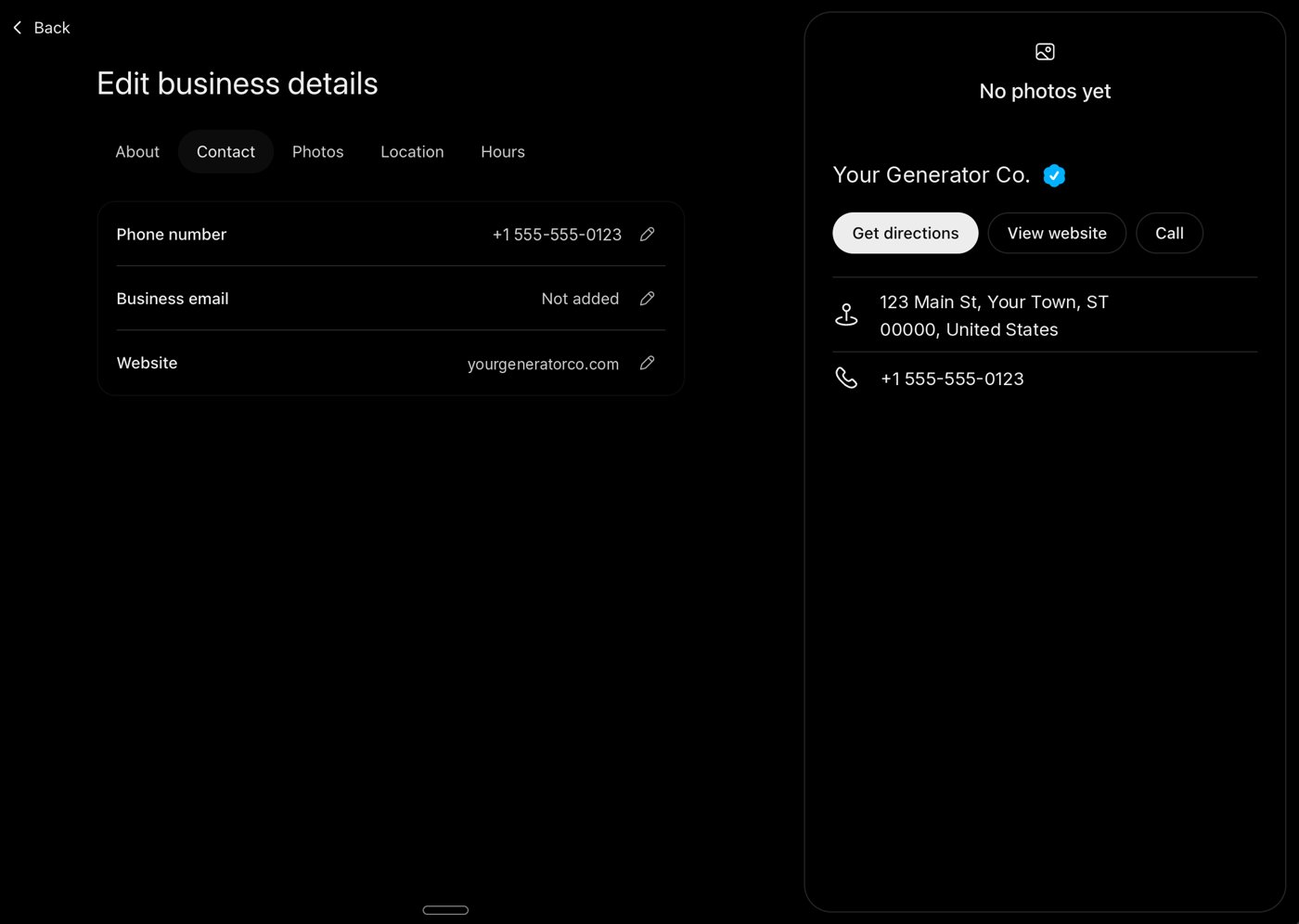
    Verify ownership

    Choose business phone, business email, website domain, or Shopify.
    Sample Business Hub business-contact screen for verifying ownership
  4. 4

    Pass Persona identity verification

    • Government-issued ID
    • Business registration information
    • Proof of authorization
  5. 5

    Fill in hours, location and photos

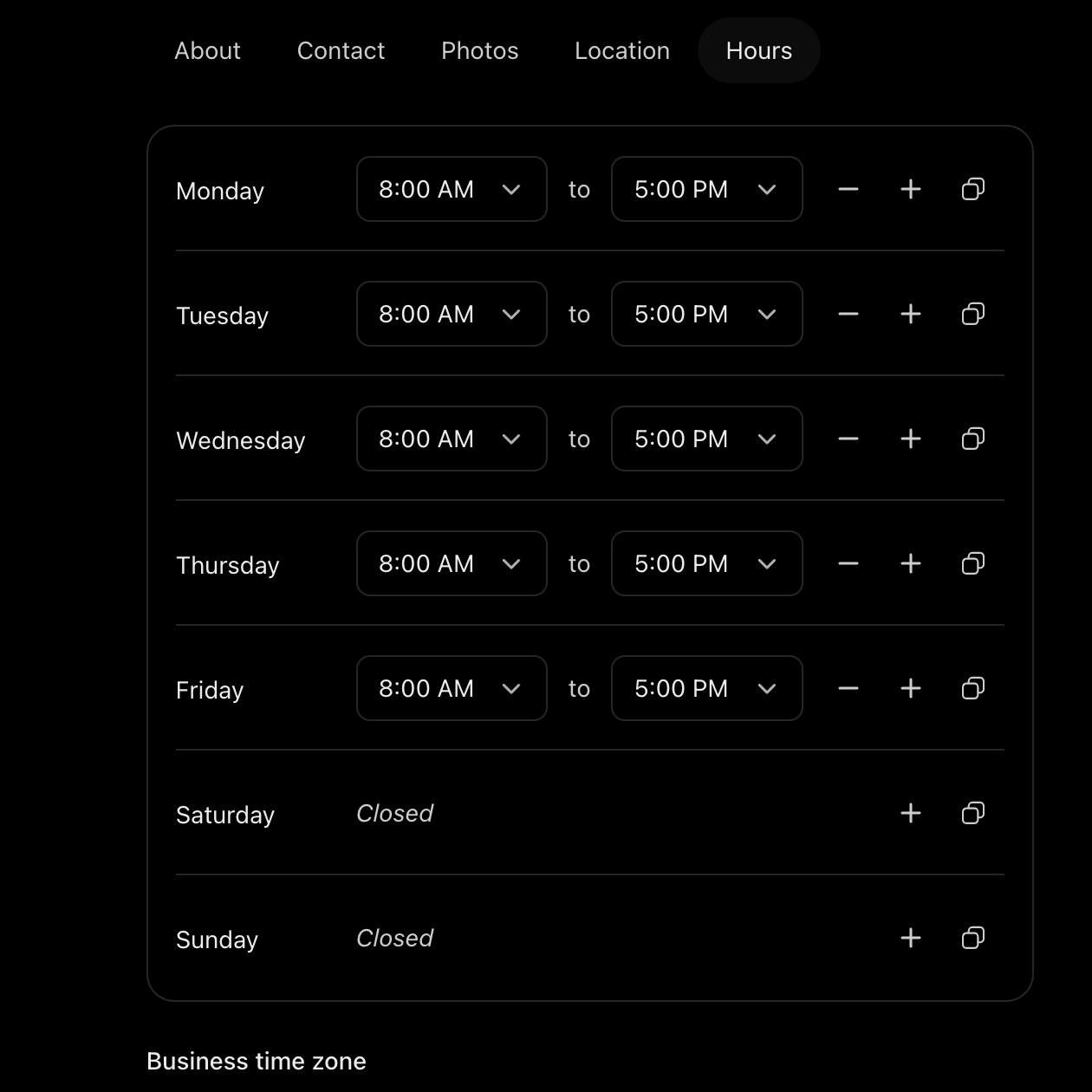
    Sample Business Hub hours settings
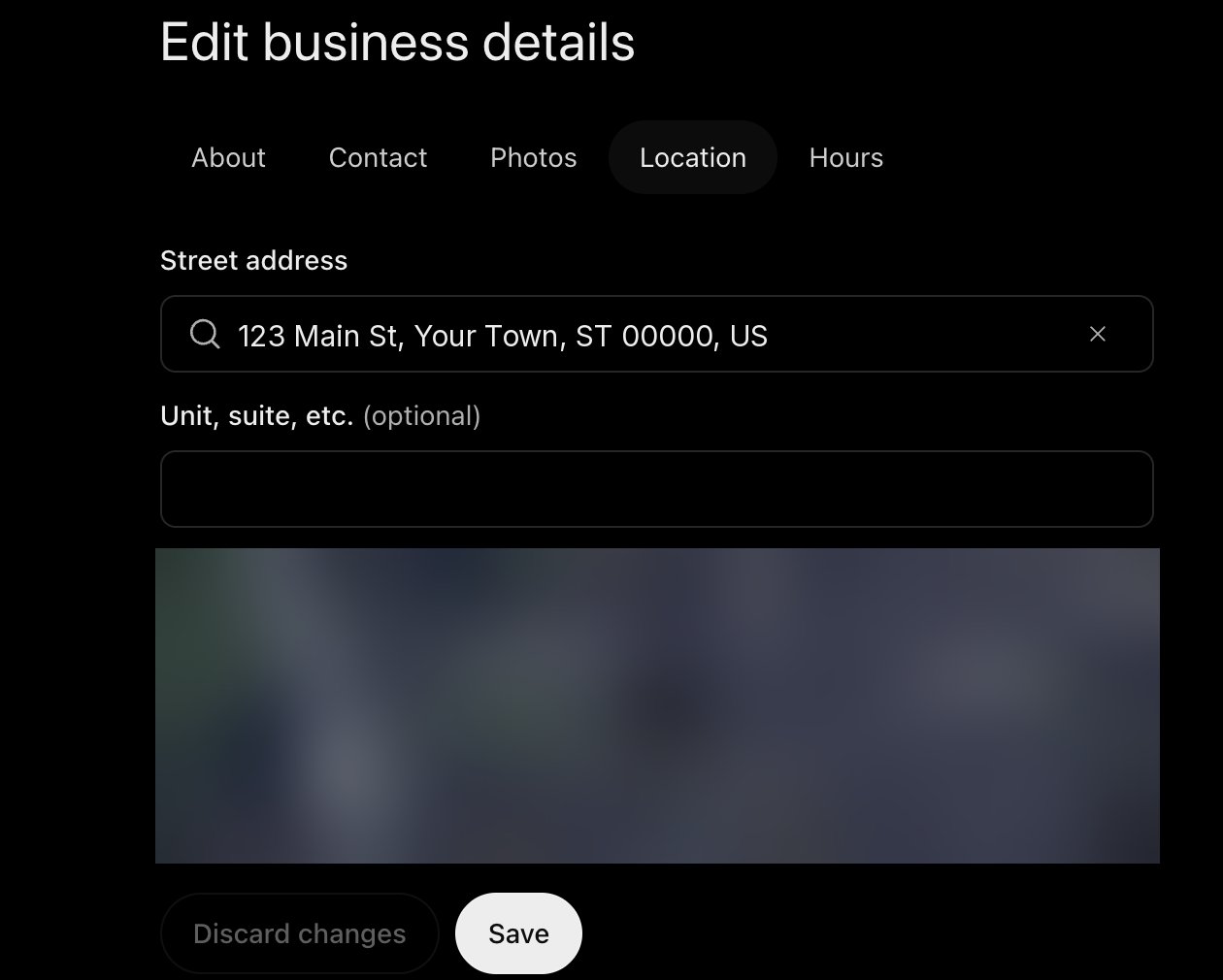
    Sample Business Hub location and service-area settings
  6. 6

    Watch your dashboard

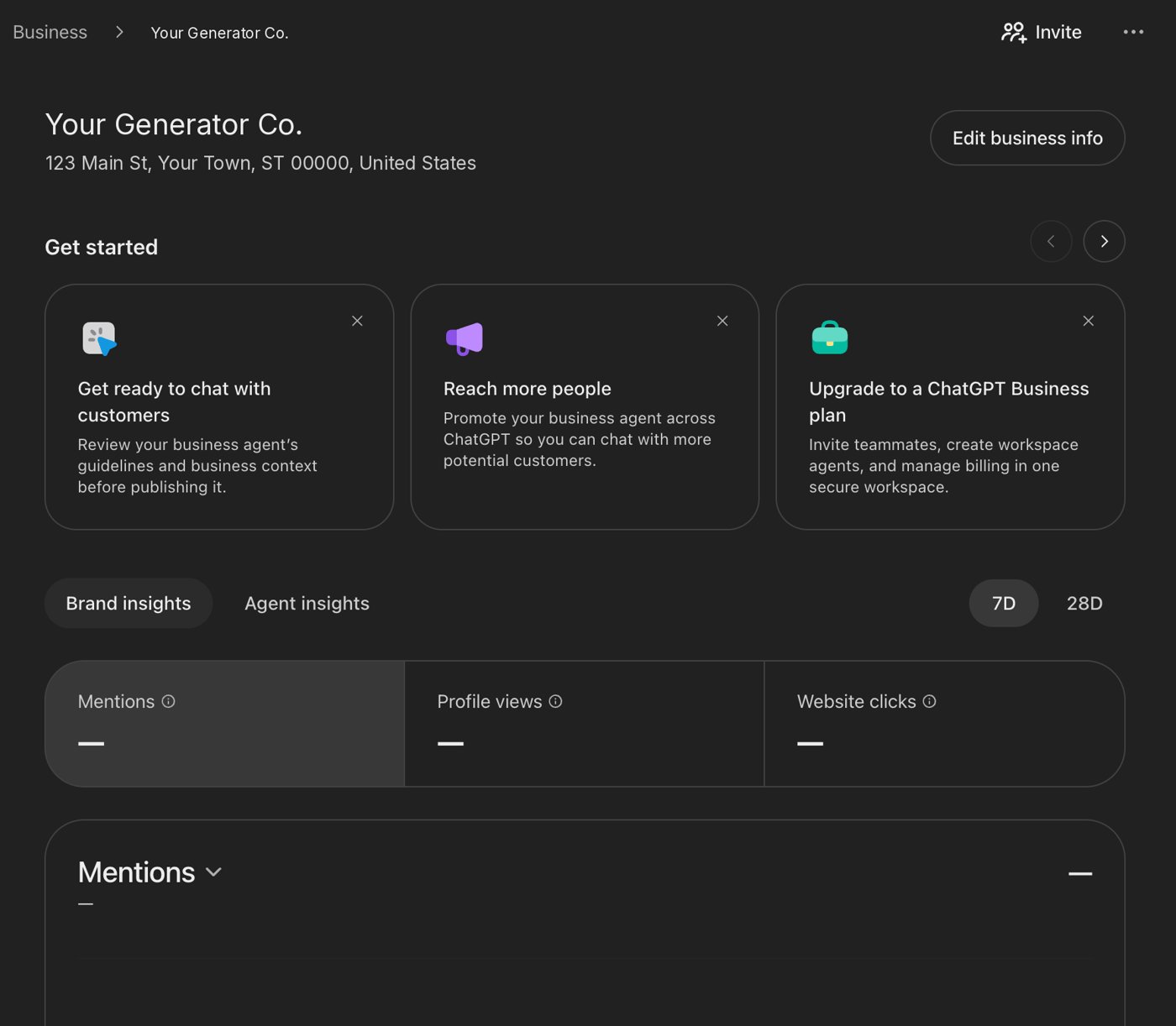
    Sample Business Hub insights dashboard with placeholder business details
    Insights such as mentions, website clicks and discovery topics appear after approval.

Screens from a sample Business Hub account with placeholder details. OpenAI can change these screens at any time.

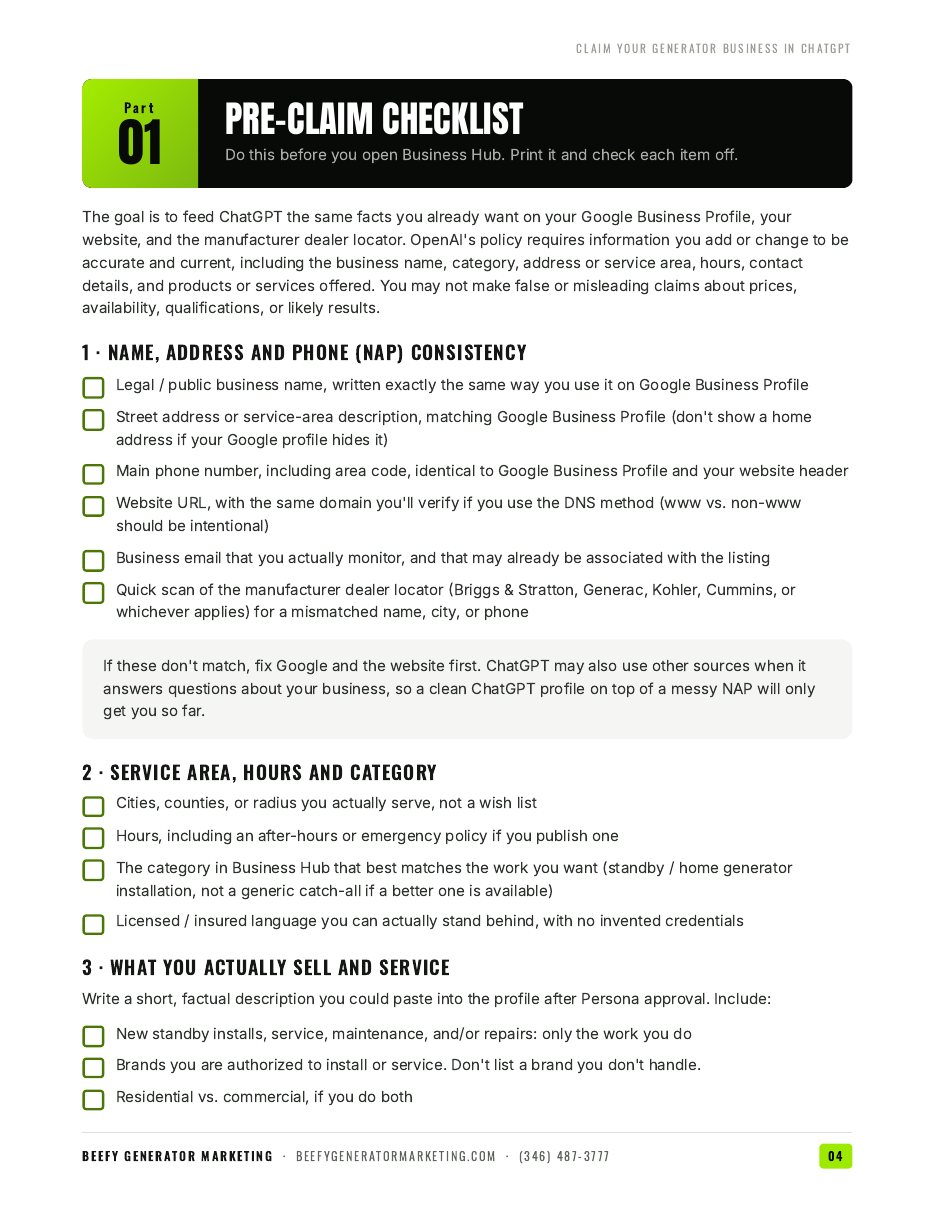
Your pre-claim checklist

0 of 12 checked

Name, address & phone
Service area, hours & category
What you sell
Photos & logo

Get the full 14-page guide

A practical walkthrough for standby generator dealers and installers.
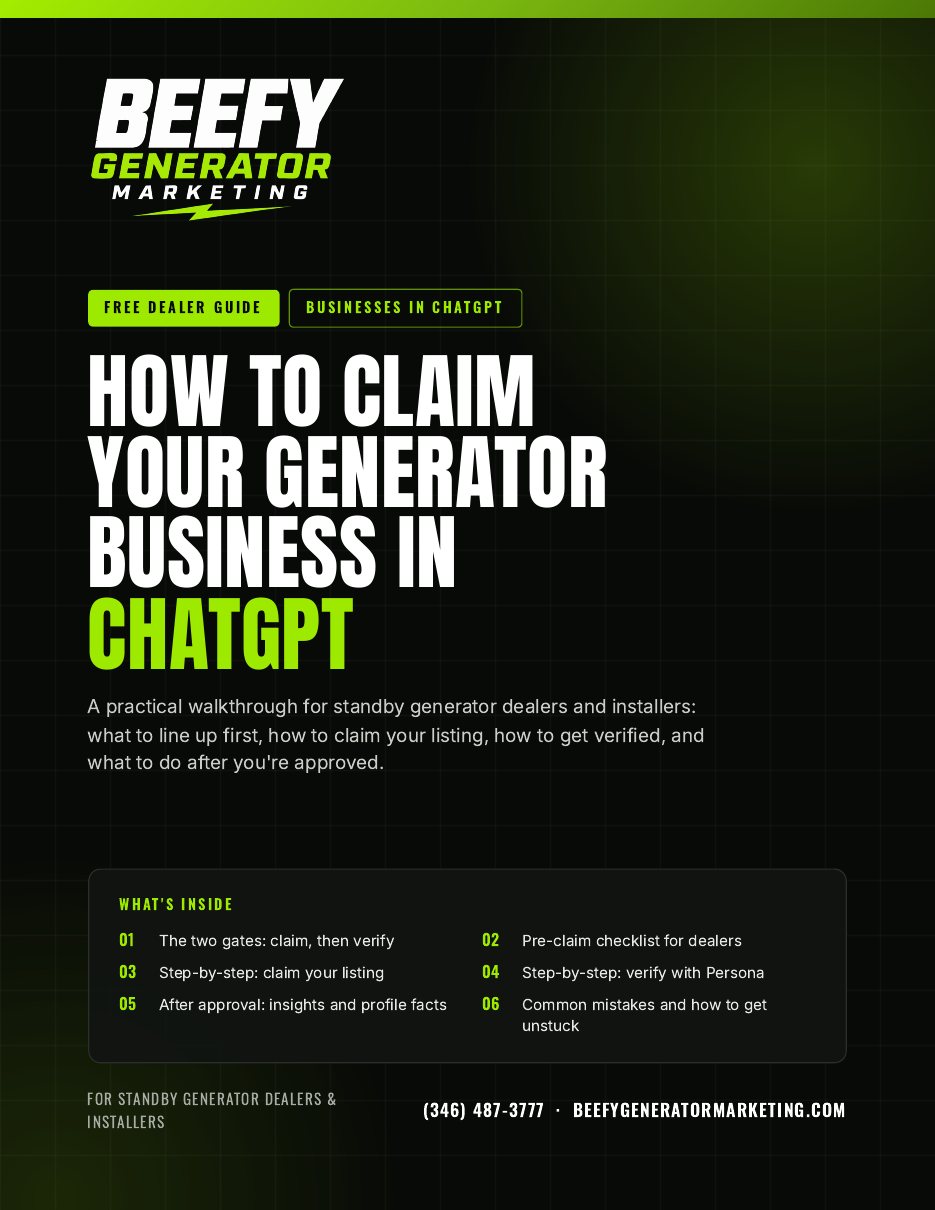
Cover page of the guide to claiming your generator business
Cover
Two gates page of the guide to claiming your generator business
Two gates
Checklist page of the guide to claiming your generator business
Checklist
Claim the listing page of the guide to claiming your generator business
Claim the listing
Verify with Persona page of the guide to claiming your generator business
Verify with Persona

The two gates, explained

What claiming unlocks, what Persona verification unlocks, and what neither one promises.

Who should claim, and from which account

Ownership, company-controlled logins, and claim invitations.

A pre-claim checklist

Name, address and phone consistency, service area, hours, category, the brands you install, photos and logo.

Step by step: claim the listing

The claim flow in Business Hub, with screenshots.

Step by step: verify with Persona

What to have ready and what happens after you submit.

What to do after you're approved

Plus what to do if someone else already claimed your listing, and the common mistakes to avoid.

Get the free guide

We'll email you about the guide and related resources. We will not text you unless you opt in. Privacy policy

Want help getting found in AI search?

We note what OpenAI hasn't confirmed and don't invent features, wait times, or results.

Call NowBook Free Session